# Multiple targets
> Learn how to drag and drop widgets between different FlexiTarget dropzones.
Source: https://www.flexiboards.dev/docs/multiple-targets
Framework: Svelte
## Introduction
A dashboard or Kanban board often needs to accept widgets across different categories, or zones, on the board.
Suppose we have a Kanban board. In its simplest form, we have one list of widgets for the Backlog, another list for the Work-in-Progress, and one more for the Done tasks.
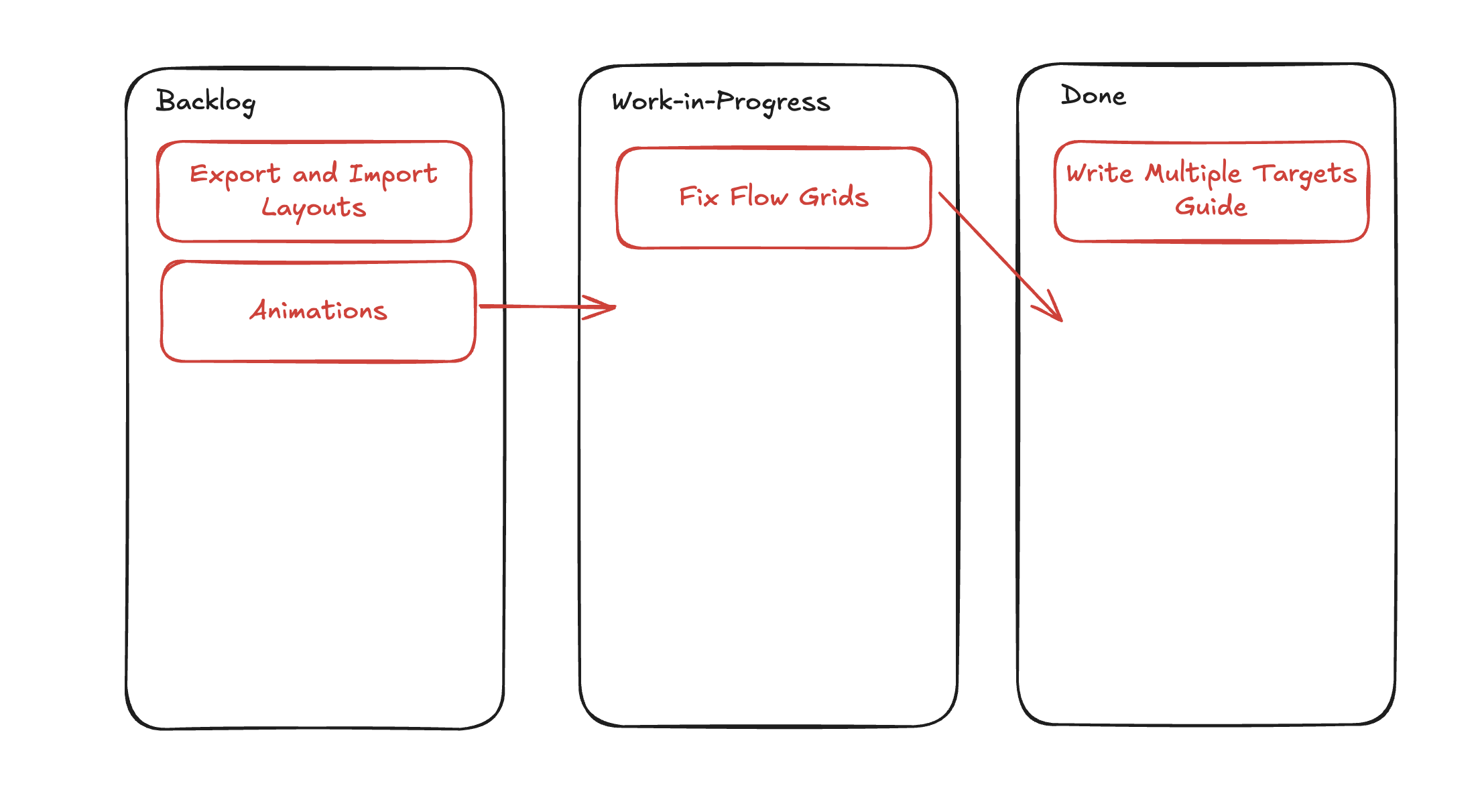
Here, one FlexiTarget for our Kanban board wouldn't be enough, as we have three different [Flow layouts](https://www.flexiboards.dev/docs/flow-grids) to maintain. The board structure that Flexiboards supports (see [Overview](https://www.flexiboards.dev/docs/overview)) lets us put multiple FlexiTargets within the same FlexiBoard.
## Using multiple targets
To add a second target, create another `FlexiTarget` component inside of your `FlexiBoard`. Each `FlexiTarget` has its own configuration, so each target's layout can behave differently from the others.
You can also use the `targetDefaults` property on the `FlexiBoard` configuration object if you want all targets to have consistent behaviour.
The example below builds the Kanban board we described earlier.
```svelte
[
'bg-muted px-4 py-2 rounded-lg w-full text-base',
widget.isShadow && 'opacity-50',
widget.isGrabbed && 'animate-pulse opacity-50'
]
}
}}
class={'flex flex-col items-center gap-8 lg:flex-row lg:items-stretch lg:justify-center'}
>
Backlog
Export and Import Layouts
Animations
Work-in-Progress
Fix Flow Grids
Done
Write Multiple Targets Guide
```
With the extra `FlexiTarget` components in place, we can drag and drop widgets within their current target, as well as drop them into the other two.
## Advanced: mixing grids
So far, every target we've dragged between has been a [Flow Grid](https://www.flexiboards.dev/docs/flow-grids). Dragging between a Flow Grid and a [Free-Form Grid](https://www.flexiboards.dev/docs/free-form-grids) works the same way: Flexiboards applies the same drag-and-drop logic whatever grid type the target dropzone uses.
```svelte
List Representation
[
'bg-blue-700 text-white px-4 py-2 rounded-lg w-full text-base',
widget.isShadow && 'opacity-50',
widget.isGrabbed && 'animate-pulse opacity-50'
]
}
}}
>
A
B
Grid Representation
C
D
```
Notice that when the widget switches between the two grids, its background colour changes to reflect the `widgetDefaults` of the grid it is in. That's [Cascading Configuration](https://www.flexiboards.dev/docs/configuration#cascading-configuration): the widget resolves each unspecified property from its nearest ancestor, and its nearest ancestor has changed.
## Examples
The [Notes](https://www.flexiboards.dev/examples/notes) example nests a Kanban board inside another board. Boards nest independently: a widget inside the inner board cannot be moved into the outer one.
## Gotchas
- **Flow grids reset the flow-axis size.** A widget dragged from a free-form grid into a flow grid has its flow-axis dimension (height, for row flow) set to 1, and keeps that size if dragged back out. Store the original size in `metadata` if you need to restore it.
- **Widgets cannot cross boards.** Two `FlexiBoard`s on one page are separate drag-and-drop environments.